
Multiset Object Tracking
MultiSet Object Tracking is a high quality visual localization system that makes it possible to build interactive AR experiences anchored to specific physical objects. The MultiSet system can recognise and track a real-world object from a 3D scan, and this can be used to place AR content accurately on or around it. This process is called localization and works by comparing the device’s camera view against a 3D model uploaded to MultiSet’s servers.
Getting Started
Section titled “Getting Started”The first step in building MultiSet VPS tracked experiences with Mattercraft is to register for a MultiSet account. You can do so from the developer portal:
Scanning your Object
Section titled “Scanning your Object”In order to track AR content to a physical object, you must first create a 3D scan of it. MultiSet recommends using a dedicated 3D scanner or a mobile scanning app such as Polycam or Luma AI using a Lidar device. Full guidance on scanning best practices can be found in the MultiSet Object Tracking Documentation.
Once you have completed your scan, export it in the GLB/GLTF format. Unzip the exported file if necessary before uploading.
GLB is the required format since as of now it’s the 3D format currently supported by MultiSet for object tracking, and is also the native format used by Mattercraft.
Uploading your Object to Multiset
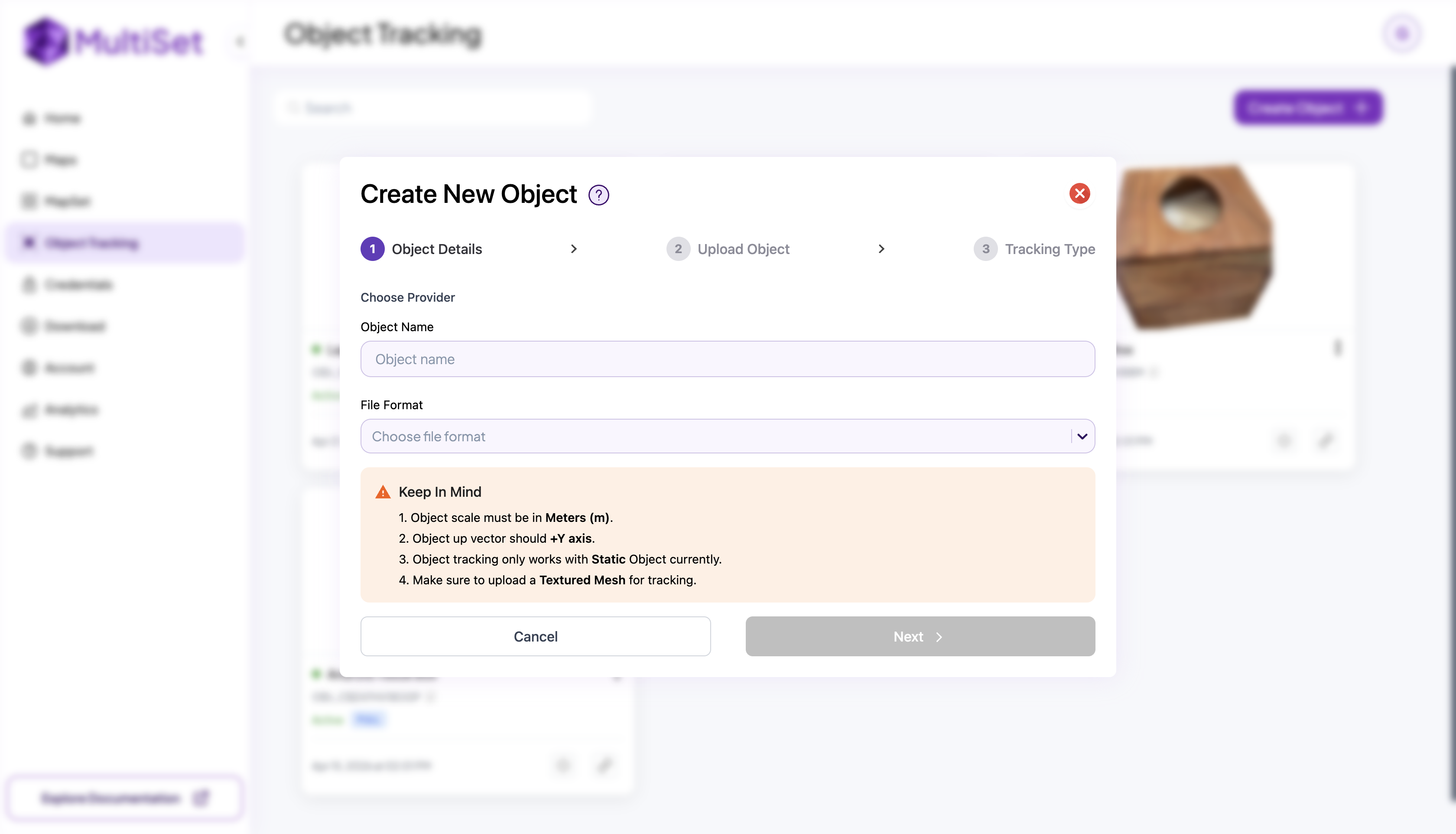
Section titled “Uploading your Object to Multiset”With your scan ready, head to the Object Tracking section of the MultiSet Developer Portal and follow these steps:
- Press Create New Object
- Give your object a name
- Select GLB as the file format and upload your GLB model
- Choose 360 View as the tracking type
- Wait for processing to complete, the object status should read Active when ready
Generating Credential
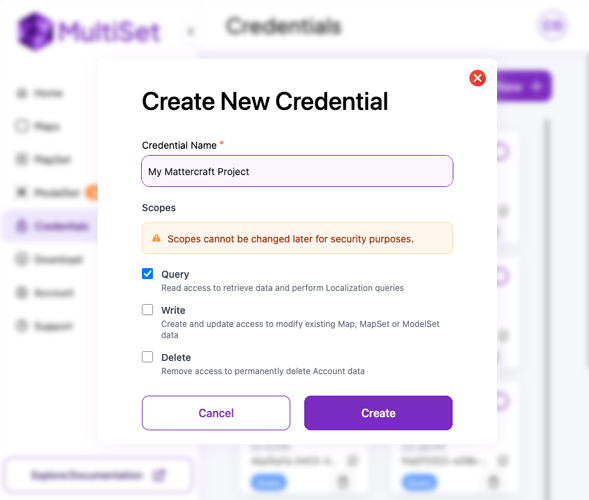
Section titled “Generating Credential”In order to use your object in Mattercraft, you must generate a set of credentials. Head to the Credentials page of the Developer Portal, click Create New, give it a name, and click Create.
We recommend creating credentials with only query permissions. This is important as Mattercraft projects are distributed as web pages — the credential may be visible to anyone who views or disassembles the source of the published page.
Once created, keep a note of the Client ID and Client Secret, you will need these when setting up your Mattercraft project.
You will NOT be able to view your Client Secret again after this step. Download your credentials or copy them somewhere safe before continuing.
Creating a Mattercraft Project
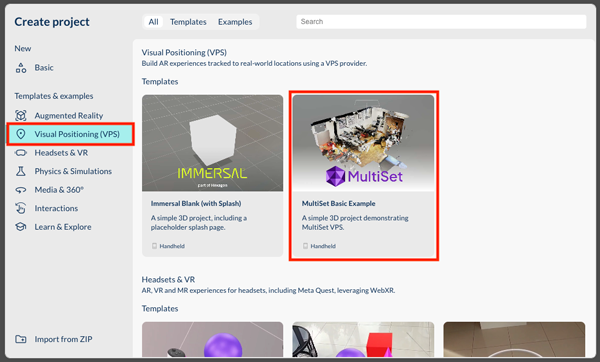
Section titled “Creating a Mattercraft Project”Mattercraft includes template projects to help you get started. In Zapworks, create a new Mattercraft project and select the MultiSet Basic Example template, you can find it in the “Visual Position (VPS)” section.
Adding Content
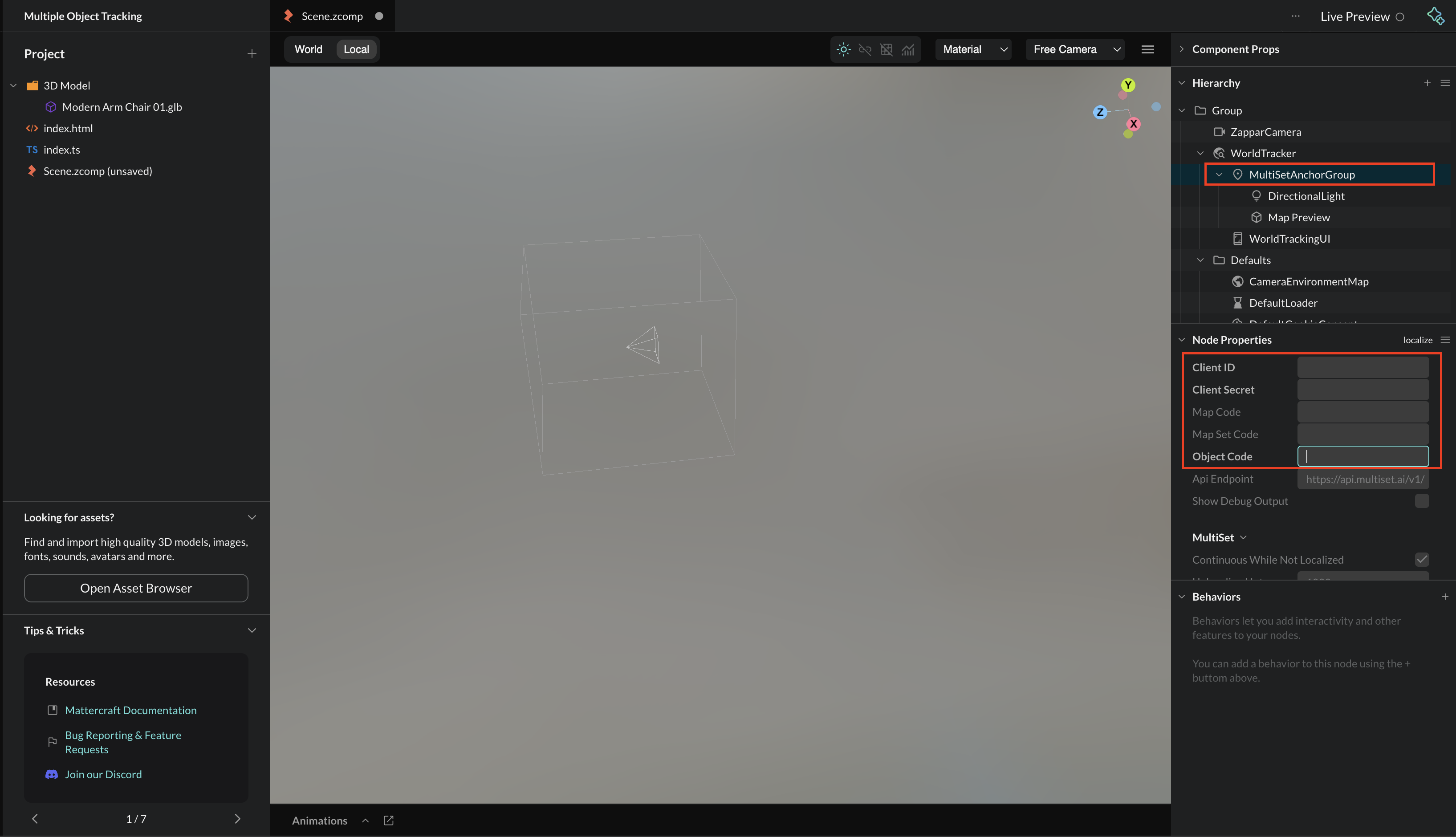
Section titled “Adding Content”Object Tracking projects in Mattercraft build upon the same structure as MultiSet VPS. To begin, select the MultiSetAnchorGroup in the Hierarchy and fill in your Client ID and Client Secret from the credentials you just generated.
Next, remove the Map Code field and instead enter your Object Code (found in the MultiSet Developer Portal on your object’s page). Once added, a 3D preview of your scanned object should appear in the editor.
Add any AR content you want tracked to the object inside the MultiSetAnchorGroup. The template includes a sample 3D model as a placeholder. Feel free to delete it and replace it with your own content. Content placed outside this group will not be tracked to the object.
The 3D preview of the object is loaded only in the editor (to help with content placement) and not when end users are accessing the experience. You can configure this functionality by selecting the Map Preview component in the Hierarchy.
Additional Configuration
Section titled “Additional Configuration”The MultiSetAnchorGroup has a number of useful properties, including:
- Relocalization Interval: the amount of time after a successful localization that a further localization will be attempted. This is helpful to avoid drift - if the user has been moving around in the space for some time, the accuracy of the location estimate may be reduced and a relocalization can correct this.
- Images to Submit: how many camera images to collect and send to the MultiSet servers per localization. The default,
1, gives the quickest result from the MultiSet servers, while setting it to4may increase the accuracy of the localization in larger or more challenging spaces.
Events
Section titled “Events”The MultiSetAnchorGroup component emits some events that you can use from behaviors or script. These include:
- onFirstLocalized - emitted the first time a successful query of an object is complete.
- onLocalizeSuccess - emitted every time a successful localization (or relocalization) of the object is complete.
- onLocalizeFailed - emitted when a localization has failed. This can be due to network connectivity issues, or that the camera image submitted to the server was not sufficient to calculate the object’s geometry.
- onNotLocalized - emitted when the processing of the object can no longer be considered accurate. This can happen if the AR tracking is lost, if the camera is turned off/on, or if the user returns to the experience from the background.
- onLocalized - emitted when the processing of the object is accurate, having not been so.
The
onLocalizeSuccess/onLocalizeFailedevents are emitted for every localization attempt, whileonLocalized/onNotLocalizedare only emitted if the accuracy of the localization has changed.