
Testing your Space
Before publishing your Space, you can preview the full end-user experience directly from the editor using Browse mode. This lets you test navigation, search for landmarks, and verify the experience is working as expected — without needing to publish first.
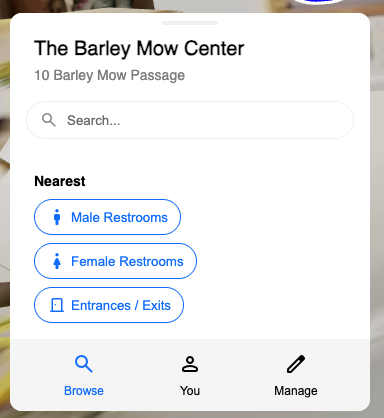
Using Browse mode
Section titled “Using Browse mode”Select Browse from the left-hand panel in the Spaces editor. This switches the editor into the same view your end users will see, including:
- Landmark search — search for any landmark by name, exactly as a user would.
- Nearest landmarks — see which landmarks are closest to your current position in the map.
- Full navigation experience — select a landmark and follow the turn-by-turn route to it.
Testing on desktop
Section titled “Testing on desktop”On desktop, Browse mode uses the same Walk and Orbit controls available in the editor. You can move through the space using the foot indicators and follow routes as they would appear to a user.
This is a good way to verify landmark placement, check that routes make sense, and catch any issues with obstacles or navigation aids before going live.
Testing on mobile
Section titled “Testing on mobile”You can also test on a mobile device while physically in the space. Open your Space for editing on mobile (see Editing on mobile) and switch to Browse mode. This gives you the full experience using real VPS positioning, so you can walk the routes and confirm everything navigates correctly on site.
Testing in Browse mode does not require your Space to be published. It is only visible to logged-in users with editor access.