
Adding landmarks
Landmarks are the named destinations users can navigate to within your Space. They appear in the search interface and define the exact location the navigation route will lead to. Examples include meeting rooms, exits, specific desks, production areas, or points of interest in a venue.
Adding a landmark
Section titled “Adding a landmark”-
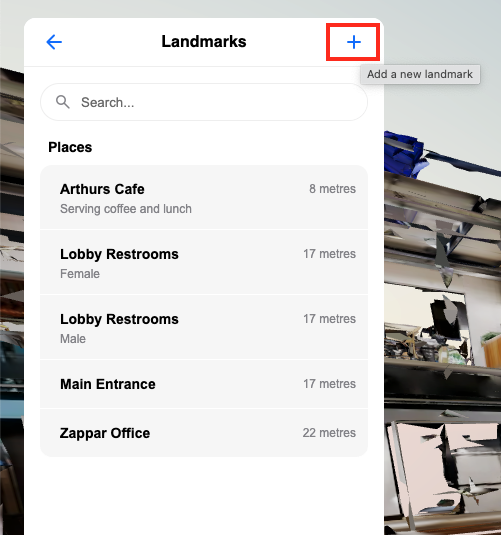
In the Spaces editor, select Landmarks from the left-hand panel.
-
Click the + icon to create a new landmark.
-
Fill in the landmark details:
Field Description Title The primary name of the landmark, shown in search results and during navigation. Subtitle A short secondary label, useful for adding a room number, floor, or category. Description Additional information shown when a user views the landmark. Supports links and formatted text. 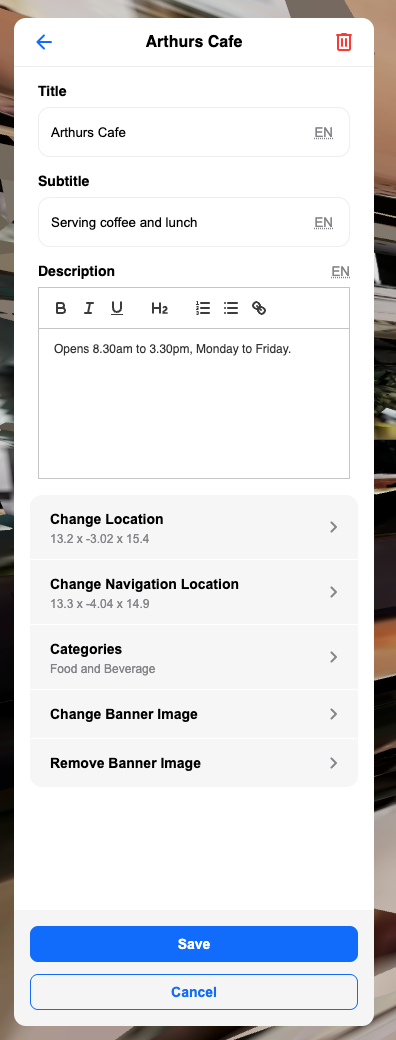
-
Click Choose location and then click directly on the map mesh in the editor viewport to place the landmark at the desired position.

Overriding the navigation position
Section titled “Overriding the navigation position”A landmark has two distinct positions: the landmark position and the navigation position.
The landmark position is where the dot appears on the map — it represents the physical location of the thing you’re pointing to. For example, if you’re marking a pipe on a wall, the landmark position would be placed on that pipe.
The navigation position is where the route actually leads to. Rather than routing users to the wall, you’d place the navigation position on the floor in front of it — somewhere they can actually stand.
When a user gets close to the landmark, a blue arrow will appear pointing toward the landmark position (not the navigation position), helping them locate the exact item. See the image below that showcases the blue arrow pointing towards the landmark.
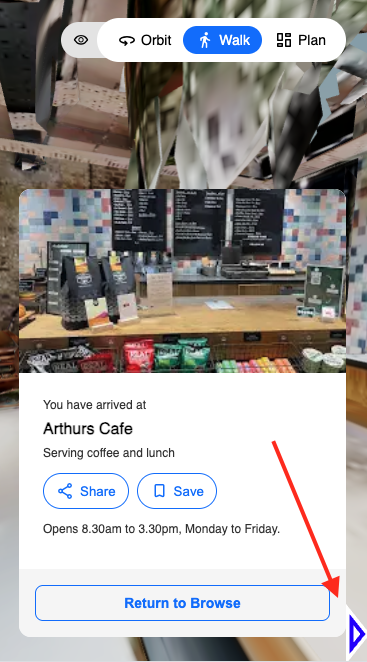
To set a separate navigation position, enable the Override navigation location option on the landmark and click on the map mesh to place it.
Managing landmarks
Section titled “Managing landmarks”All landmarks are listed in the Landmarks panel. You can select any landmark from the list to edit its details or reposition it on the map.