
Mapping
Spaces requires a 3D map of your environment, processed through a supported visual positioning system (VPS) provider. The map is used to position users accurately within the space - a process called localization - and to generate the walkable area that navigation routes are calculated from.
Supported providers
Section titled “Supported providers”Spaces currently supports MultiSet as its VPS provider.
More VPS providers are coming soon, including Auki and Immersal. Get in touch if you’d like to request support for a specific mapping solution.
Building a map
Section titled “Building a map”To track users within a physical space, you first need to scan it. The scan builds a map of the visual appearance and structure of the location - everything MultiSet needs to determine where a user’s device is within that space. A 3D model of the location is also created, which Spaces uses to generate the walkable area for navigation routing.
Already have a Matterport scan?
Section titled “Already have a Matterport scan?”If your space has already been captured with Matterport, you can upload it directly to the MultiSet developer portal - no additional scanning required. This is the quickest way to get started if a Matterport scan is already available.
Scanning with the MultiSet app
Section titled “Scanning with the MultiSet app”If you don’t have an existing scan, MultiSet provides an app that runs on LiDAR-equipped iPhones and iPads. The MultiSet Mapping Documentation covers the full scanning process and includes tips for getting accurate results.
Once your scan is complete, it will be available in the MultiSet developer portal:
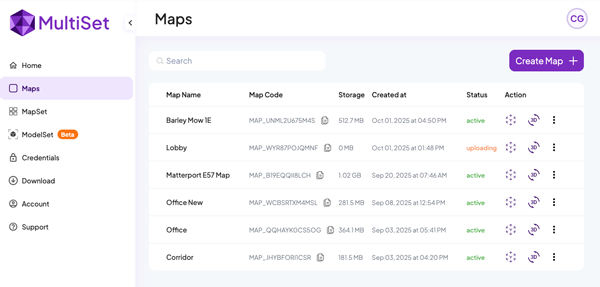
Large spaces and MapSets
Section titled “Large spaces and MapSets”If you are mapping a large space, MultiSet’s MapSet feature lets you combine multiple individual scans into a single larger set. Spaces supports both individual maps and map sets.
Generating credentials
Section titled “Generating credentials”To connect a MultiSet map to your Spaces project, you need to generate a set of credentials. Head to the credentials page of the developer portal and select Create New.
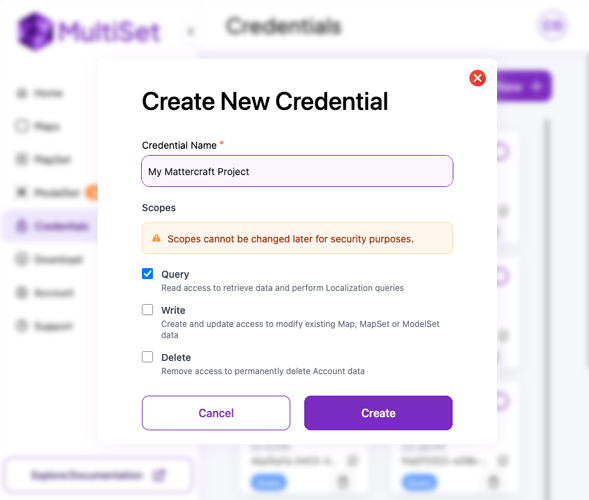
Create credentials with query permissions only. This limits access to localization queries and keeps your map data protected.
Once created, note down the client ID and secret - you will need these when setting up your Space, along with the map code (beginning MAP_...) or map set code (beginning MSET_...) from the developer portal.
You are now ready to proceed to Set up your Space.