
Editing on mobile
In addition to the desktop editor, Spaces can be edited on a mobile device. This is particularly useful when you need to place landmarks, obstacles, or other elements with precision - being physically present in the space makes it much easier to identify exact locations on the map.
How to edit on mobile
Section titled “How to edit on mobile”- Open your Space in the desktop editor at my.zap.works.
- Select Edit Space on Mobile Device from the left-hand panel.
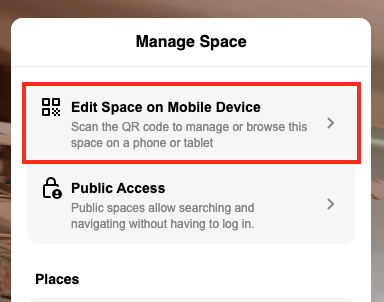
- A QR code will be displayed - scan it with your mobile device.
- Log in to your Zapworks account on the mobile device if prompted.
Once logged in, you will have full access to the Spaces editor on your device, including landmark placement, obstacle marking, and navigation aid configuration.
You must be logged in to a Zapworks account to edit a Space on mobile. Scanning the QR code alone is not sufficient.
Desktop vs. mobile editing
Section titled “Desktop vs. mobile editing”| Desktop | Mobile | |
|---|---|---|
| Full editor access | Yes | Yes |
| Landmark placement | Yes | Yes |
| Requires being on site | No | Yes |
| Best for precise placement | When using existing scan reference | When physically in the space |
Mobile editing is optional - all the same actions are available in the desktop editor. Use it when being in the physical environment helps you place elements more accurately.