
Publishing
When your Space is configured with landmarks and structure, you can publish it to make it accessible to users. Spaces runs entirely in the browser - there is no app to install, and updates to your space are available instantly after saving.
Making your Space public
Section titled “Making your Space public”- In the Spaces editor, locate the Access settings in the left-hand panel.
- Enable the Public access toggle.
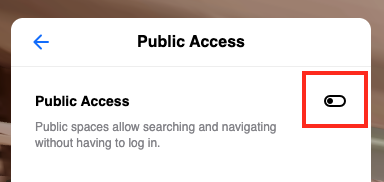
Your Space is now live and accessible to anyone with the QR code or link.
Sharing your Space
Section titled “Sharing your Space”Once public access is enabled, you can copy the QR code and shareable link from the same panel. These can be:
- Printed and placed at entrances, reception areas, or key locations throughout the venue.
- Embedded in emails, intranets, or digital signage.
- Added to existing wayfinding materials.

Multiple entry points
Section titled “Multiple entry points”A single QR code or link can be placed anywhere in your venue - it does not need to be positioned at the location where the VPS map scan began. Users can start navigation from any entry point you choose.
You can create and place as many entry points as needed, allowing users to pick up directions from the most convenient starting location.
Because Spaces uses VPS for positioning, users need to point their camera at their surroundings briefly when launching the experience. Position your QR codes in areas with clear sightlines and good visual features for the fastest positioning lock.
Making changes after publishing
Section titled “Making changes after publishing”Any edits saved in the Spaces editor are reflected in the live experience immediately. There is no need to republish after making changes to landmarks, obstacles, or navigation aids.